How to schedule a text message
Updated
On iPhone, open Messages, tap +, tap Send Later, pick the time, then type your message and send it. It only works over iMessage, and only up to 14 days ahead. On Android, type the text in Google Messages, press and hold Send, and pick a date and time. Both go out from your own phone. If the day is months or years away, LightVow can send it for you. On the day and hour you pick, they get a text with a private link to your message.
A text from LightVow doesn't come from your number. LightVow sends it, it says the message is from you, and the link opens your letter, along with any photo, voice note or video you added, in the browser. They don't need an app or an account.
| Fact | How far ahead | Sent from | What they get |
|---|---|---|---|
| iPhone Messages (Send Later) | Up to 14 days | Your iPhone, over iMessage | A normal iMessage from you |
| Google Messages (Android) | The date and time you pick | Your phone. If it's offline then, it sends when it reconnects | A normal text from you |
| LightVow | Up to 2 years on a free letter, up to 20 on a paid plan | LightVow, not your phone | A text from LightVow with a private link to your message |
Checked on . The iPhone and Android lines come from Apple's and Google's own help pages, listed under Sources. LightVow facts are read from its code (lightvow.com/facts.json)
Send it so it lands on the day

Or write it on the web
First letter free. You only sign up when you seal it.
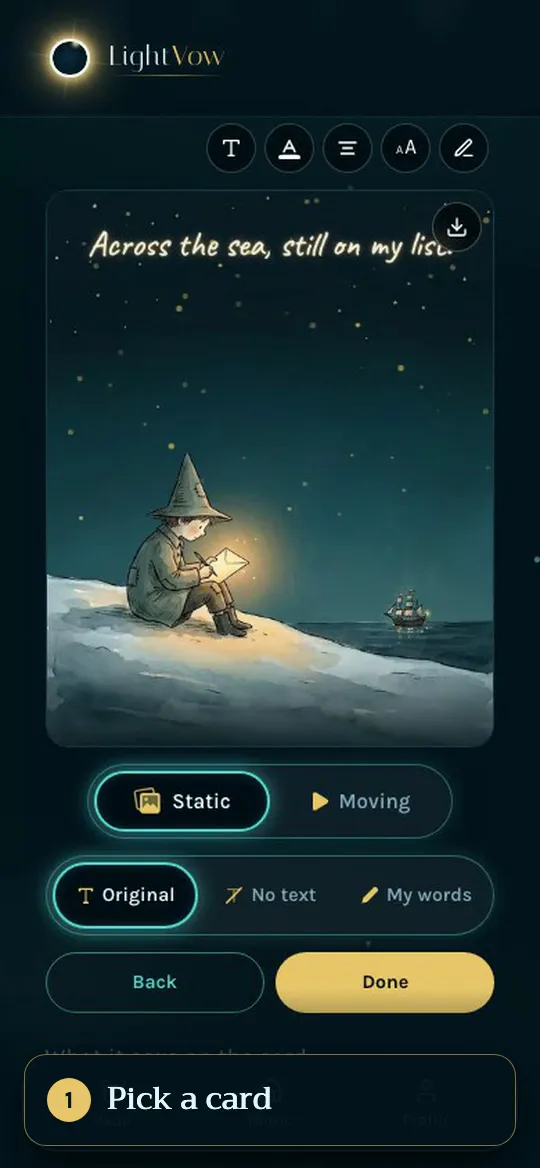
What it looks like
Real screens from LightVow, on a phone.
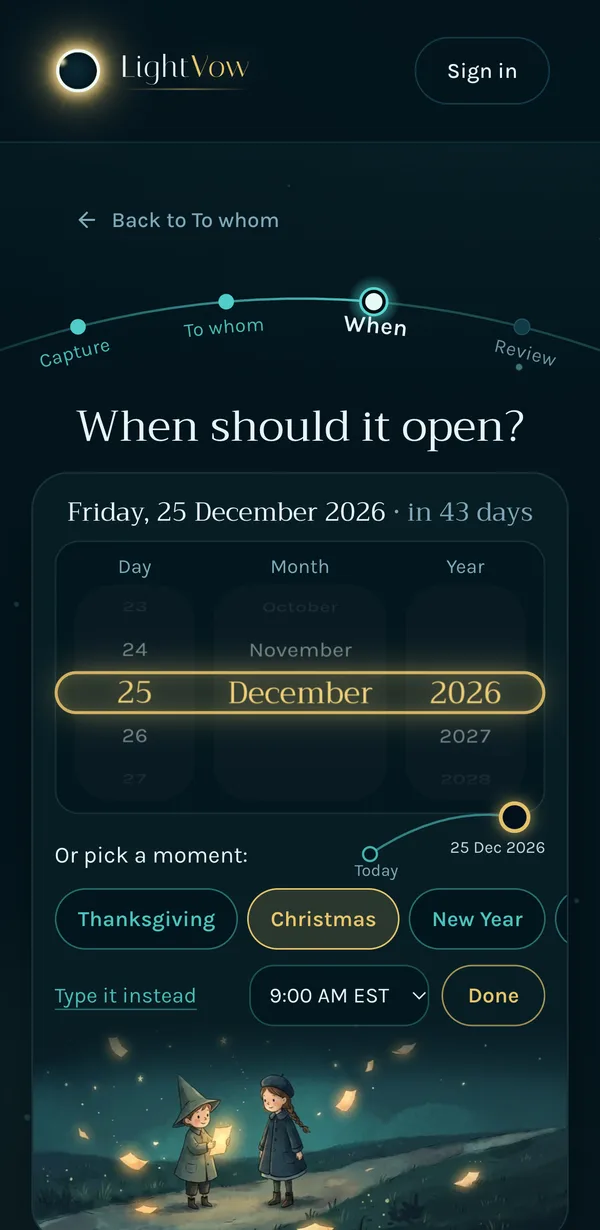
1.You pick the day and the hour 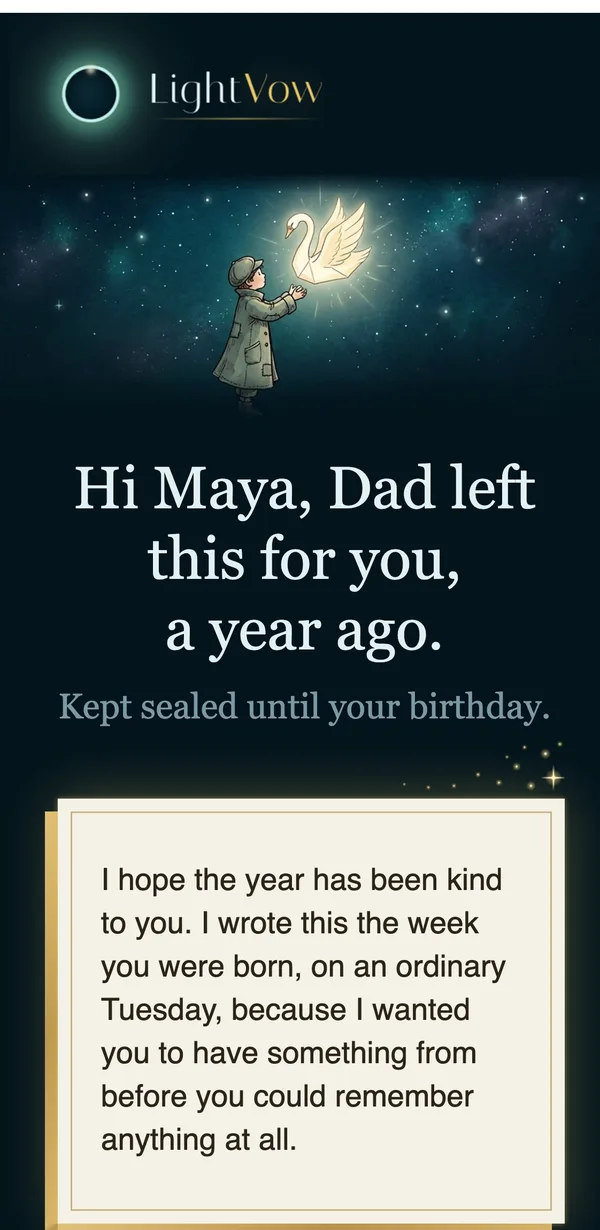
2.On that morning, an email arrives 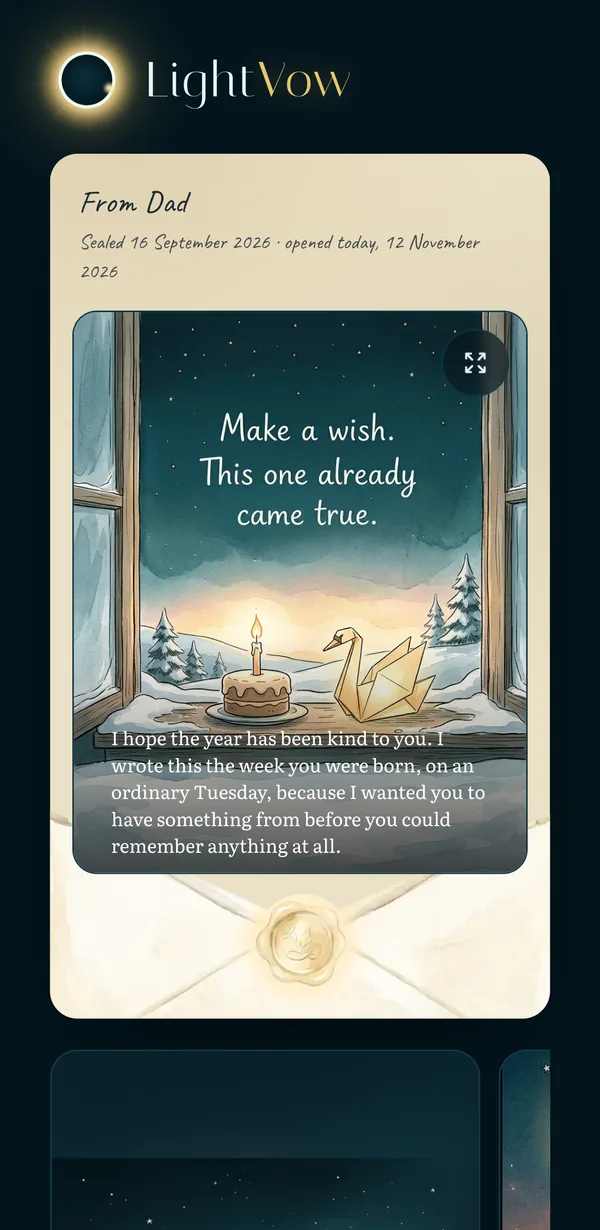
3.It opens in the browser, no app
8 lines to start with
Tap one and it opens on the card as your first line.
- Good luck today. I set this up a week ago because I knew you'd crush it.
- Happy first day. I wrote this before you even started packing.
- One year ago tonight. I scheduled this the day we got back.
- Checking in from a few months ago. Did you take the trip?
- You made it through the week. This one's been waiting for you.
- Happy birthday. I wanted to be the first text you saw today.
- Remember what you promised yourself in January? Consider this your reminder.
- No reason. I just wanted something nice to land on a random Tuesday.
Scheduling a text on LightVow
Write it
Write your message on a card. You can add a photo, a voice note or a video.
Add their number
Type their phone number. Add their email too if you have it, so there's a second way for it to reach them.
Pick the day and the hour
Any whole hour, in your own time zone. For a birthday, you can set it to come back every year.
Seal it
This is where you sign up, not before. Once it's sealed, nobody can change it or open it early, you included.
On iPhone: Send Later
Open the chat in Messages, tap the + button, then tap Send Later. Tap the time to pick when it goes out, type your message, and send it. It shows up in the chat as scheduled until then.
Apple caps it at 14 days, and it only works over iMessage on iOS 18 or later, so you won't see it in a green-bubble chat. To change a scheduled message, touch and hold it and tap Edit. To cancel, touch and hold it and tap Delete. Either way, you need to be online.
On Android: Google Messages
Type the text, then press and hold Send instead of tapping it. Pick one of the suggested times or choose your own date and time. You need Android 7.0 or later.
The text goes out from your phone. If it's off Wi-Fi and data at that moment, the message waits and sends once the phone reconnects. To change or cancel it, open the chat and tap the schedule icon next to the message.
When the day is months away
Phone schedulers are made for later this week. They're not a great fit for a text that should land on a birthday next spring, the first day of a new job, or exactly one year from tonight. The iPhone stops at two weeks, and on Android the text depends on your phone being online at that moment.
LightVow keeps the message on its side and sends it on the day. They get a short text that names you and says a message is ready to open today, with a link. That's also how you send something a text can't hold, like a video that plays on a future date.
Sources
- Apple iPhone User Guide: Schedule a text message to send later
- Google Messages Help: Send messages (schedule messages)
- LightVow product facts (read from its code)
Checked
Making it yours
- For a text later this week, the scheduler built into your phone is the fastest way.
- Pick an hour they'll be awake. The hour on LightVow is in your time zone, so do the math if they live somewhere else.
- Don't tell them it's coming. A text out of nowhere is half the fun.
Questions people ask
- How do I schedule a text message?
- On iPhone, open Messages, tap +, tap Send Later, pick the time, then type your message and send it. It only works over iMessage, and only up to 14 days ahead. On Android, type the text in Google Messages, press and hold Send, and pick a date and time. Both go out from your own phone. If the day is months or years away, LightVow can send it for you. On the day and hour you pick, they get a text with a private link to your message.
- Can I schedule a text on iPhone more than 14 days ahead?
- Not with Send Later. Apple caps it at 14 days. For a date further out, LightVow holds the message and texts them a link to it on the day. Free letters can open up to 2 years ahead, and a paid plan goes up to 20.
- Can I schedule a text from my own number?
- Yes, with the scheduler that's already on your phone (Send Later on iPhone, Google Messages on Android). A text from LightVow comes from LightVow, not your number, and it says it's from you.
- Does the person need an app to read it?
- No. The link in the text opens in any browser, with no app and no account.
- Can a scheduled text come back every year?
- Yes, on LightVow. Set it to every year and it arrives on the same date at the same hour. That's the easy way to schedule a birthday message once and never forget it.
- Is it free?
- Your first letter is free, and you only sign up when you seal it. If you want more, prices are at lightvow.com/plans.
Write it today. It opens on the day you pick.
Your first letter is free, and you only sign up when you seal it. The person you write to needs no app and no account.